
This addon allows you to define and manage a list of colors that users can select for text and artwork in the Product Designer App. You can apply color lists globally or configure them per product.
You can view the demo here.
Requirements #
- You must purchase and install the paid version of Product Designer App (PDA).
- Your purchase code must be verified before installing addons.
Add Addon to Cart #
- Go to PrestaShop Back Office
- Navigate to PDA → Addons
- Open Store Addons
- Verify your purchased code if it has not been verified yet
- Click Add to Cart to add the addon to your cart


Checkout and Payment #
- Click the Checkout button
- Make sure you have enough balance in your PDA Wallet
- Start the payment process
- Complete the payment


After payment is successful, the addon will be available for download.
Import Addon #
- Go back to the Addon List
- Reload the page if needed
- Click Import to download the addon package

- After importing, click the Install button
- Activate the addon to start using it

Settings #
To configure the Color List addon:
- Go to PDA → Addons
- Click the Settings button of the Color List addon

Configuration #
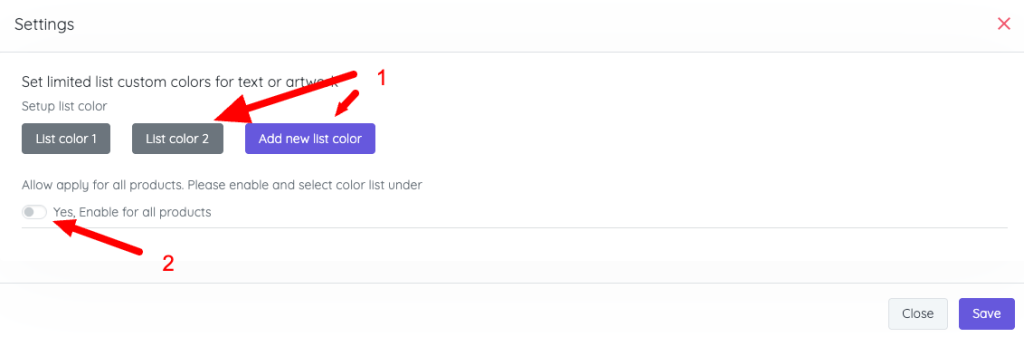
Manage Color List
- Add or edit the color list (1)
- Enable Apply to all products if you want to use this color list globally (2)
- Click Save to apply changes
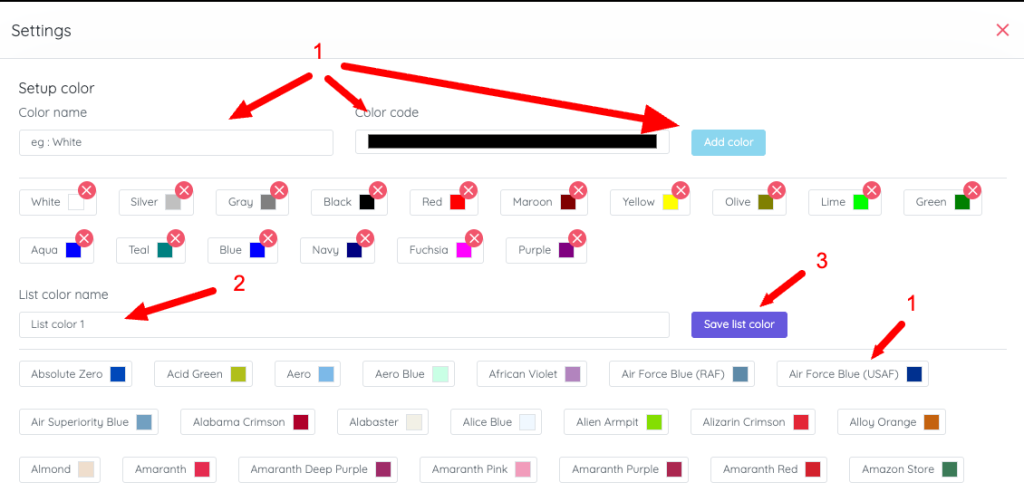
Add / Edit Colors
To add or edit colors in a list:
- Click a color to edit it, or add a new color by name and HEX code
- Set the color name
- Save the color list
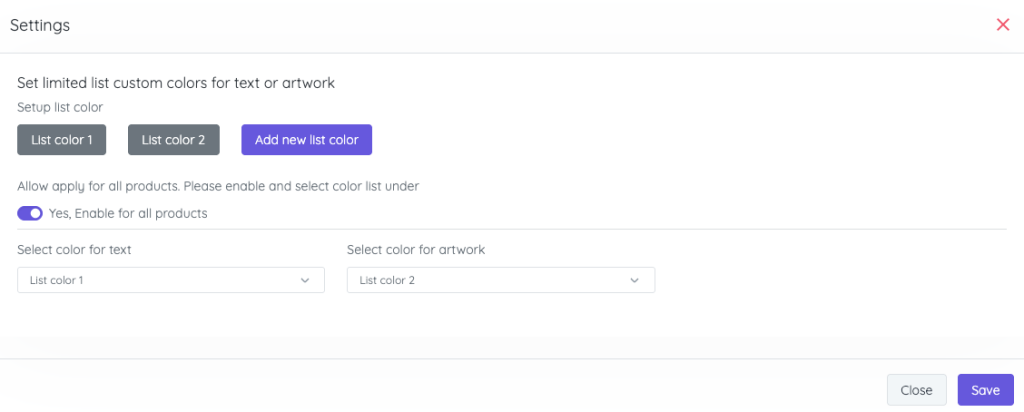
Apply Color List
- After setting up the color list:
- You can apply it to all products, or
- Disable Apply to all products and configure it per product
- You can select color lists separately for:
- Text
- Artwork
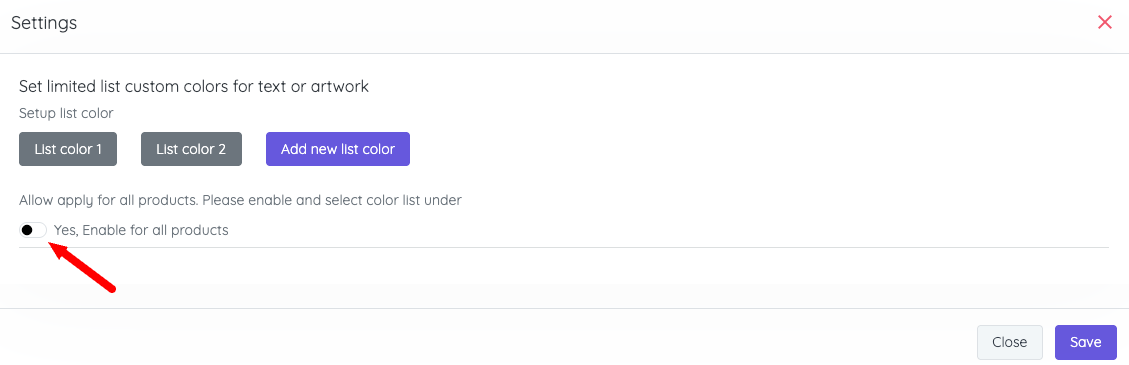
Enable Color List for Specific Products #
If you want to configure color lists per product:
- Disable Apply to all products
- Edit the product you want to configure
- Go to Product → Advanced → Addons
- Select the color list you want to use

Result #
Users will only be able to select colors from the predefined list when customizing text or artwork, based on your configuration.
Uninstall / Delete Addon #
If you no longer want to use this addon:
- Uninstall the addon to disable it
- After uninstalling, the Delete button will appear
- Click Delete to permanently remove all addon files
Notes #
- Deleting the addon will permanently remove all related files.
- Make sure the addon is uninstalled before deleting it.


