
Sell Print File Addon allows store owners to sell print-ready files as an additional product option. Customers can purchase the print file along with their customized product and download the file directly from the order details page after completing the purchase.
You can view the demo here.
Requirements #
- You must purchase and install the paid version of Product Designer App (PDA).
- Your purchase code must be verified before installing addons.
Installation #
Add Addon to Cart #
- Go to PrestaShop Back Office
- Navigate to PDA → Addons (1, 2)
- Open Store Addons (3)
- Verify your purchased code if it has not been verified yet
- Click Add to Cart to add the addon to your cart


Checkout and Payment #
- Click the Checkout button
- Make sure you have enough balance in your PDA Wallet
- Start the payment process
- Complete the payment


After payment is successful, the addon will be available for download.
Import Addon #
- Go back to the Addon List
- Reload the page if needed
- Click Import to download the addon package

- After importing, click the Install button

Settings #
To configure the Download With Mask addon:
- Go to PDA → Addons
- Click the Settings button of the Download With Mask addon

Configuration #
Enable Per Product (Optional)
If you do not want to enable this addon for all products:
- Disable Enable for all products in the addon settings. (2)
- Edit a product in Prestashop.
- Go to Advanced → Addons.
- Enable Sell Print File and set the price for that product.
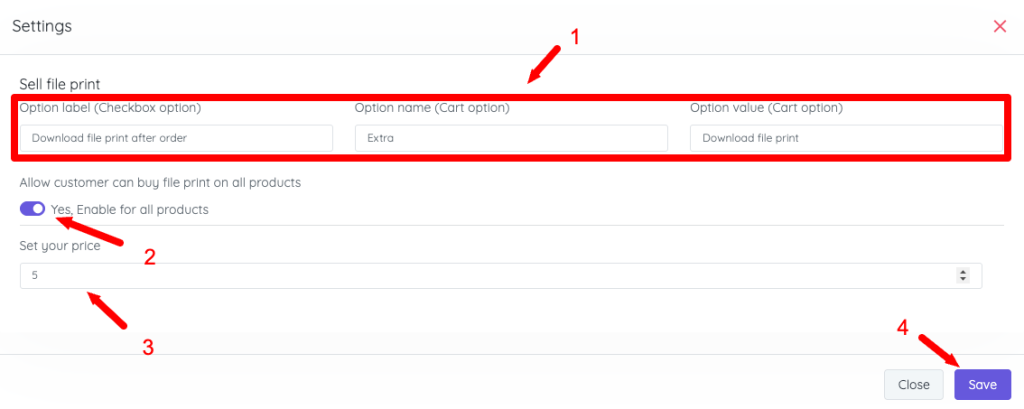

Frontend & Order Behavior
- The Buy Print File option is displayed in the Design Studio.
- The option also appears in the Cart as an extra option.
- After checkout, a Download Print File button is available in the Order Details page.
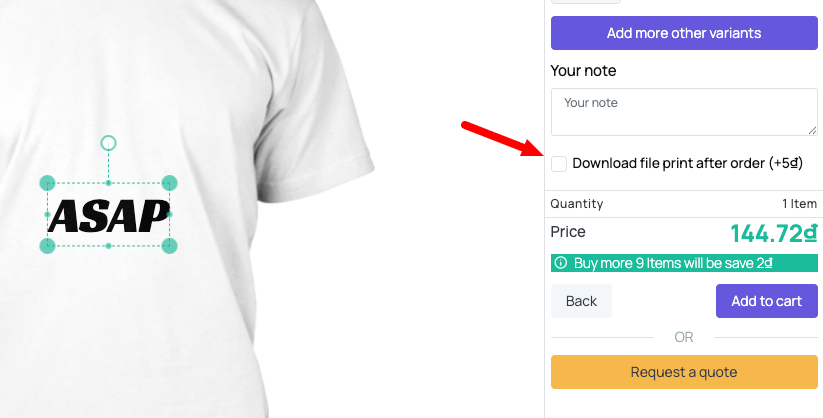
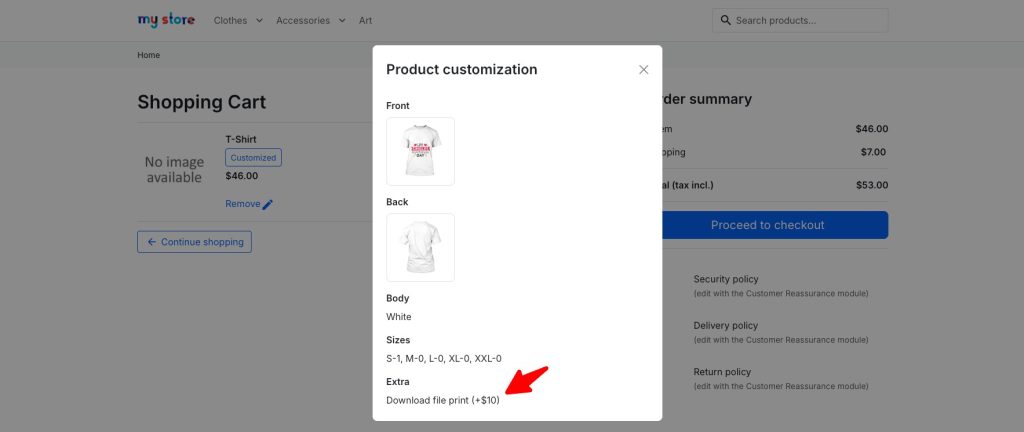
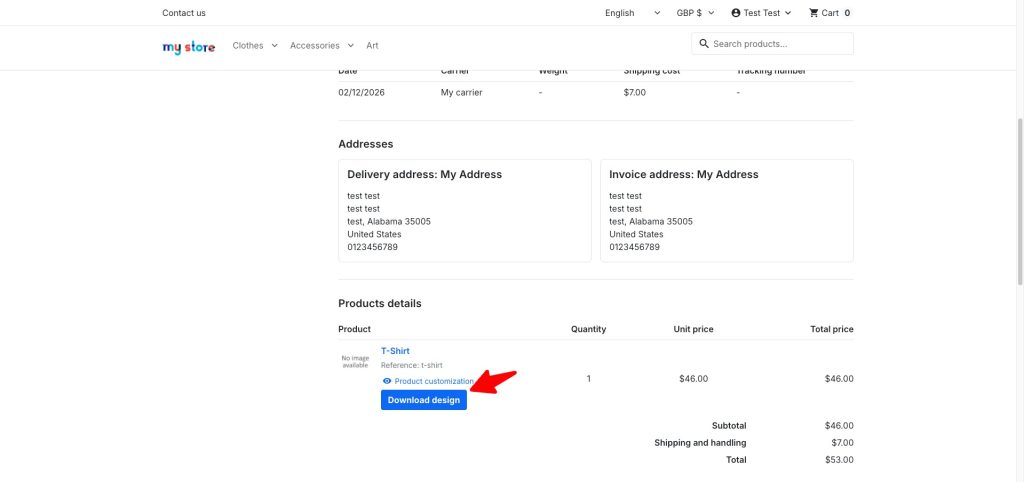
Result
- Customers can purchase a print file as an extra option during the design or checkout process.
- The print file option appears clearly in the Design Studio and in the cart.
- After the order is completed, customers can download the print file directly from the Order Details page.
- Store owners can set a separate selling price for the print file.
- The feature works seamlessly with Product Designer App without affecting the base product pricing.
How to Delete #
If you no longer want to use this addon:
- Uninstall the addon.
- Click the Delete button to remove all addon files. The Delete button is only visible after the addon has been uninstalled.
Notes #
- The print file is only available for download after successful payment.
- Make sure the addon is enabled globally or per product before testing.
- If you disable the option “Enable for all products”, you must manually enable Sell Print File in each product under Product → Advanced → Addons.
- The downloaded file is generated from the final customer design, so any design changes after checkout will not affect the downloaded file.
- For best results, ensure your server has sufficient storage and permissions for file generation and downloads.


