
This addon allows you to add a fixed printing fee per design, regardless of product quantity. You can be applied to all printing type and combined to other printing attributes..
You can view the demo here.
Requirements #
- You must purchase and install the paid version of Product Designer App (PDA).
- Your purchase code must be verified before installing addons.
Installation #
Add Addon to Cart #
- Go to WordPress Admin Panel
- Navigate to PDA → Addons (1, 2)
- Open Store Addons (3)
- Verify your purchased code if it has not been verified yet
- Click Add to Cart to add the addon to your cart


Checkout and Payment #
- Click the Checkout button
- Make sure you have enough balance in your PDA Wallet
- Start the payment process
- Complete the payment


After payment is successful, the addon will be available for download.
Import Addon #
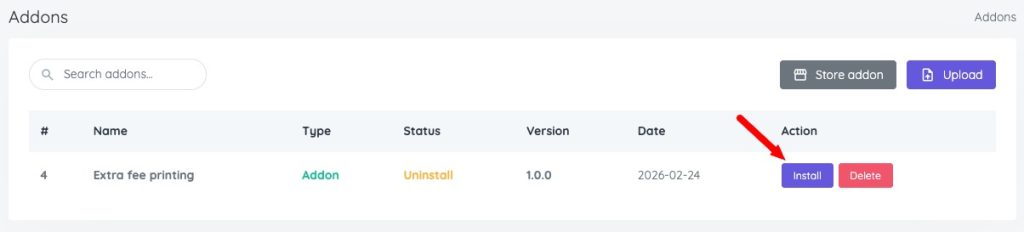
- Go back to the Addon List
- Reload the page if needed
- Click Import to download the addon package

- After importing, click the Install button
Settings #
To configure the Extra fee printing addon:
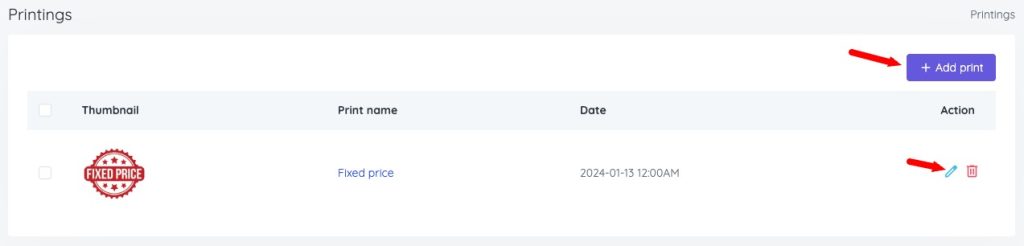
- Go to PDA → Printing Type
- Click the Add print button or edit if you want apply to a printing type.
Configuration #
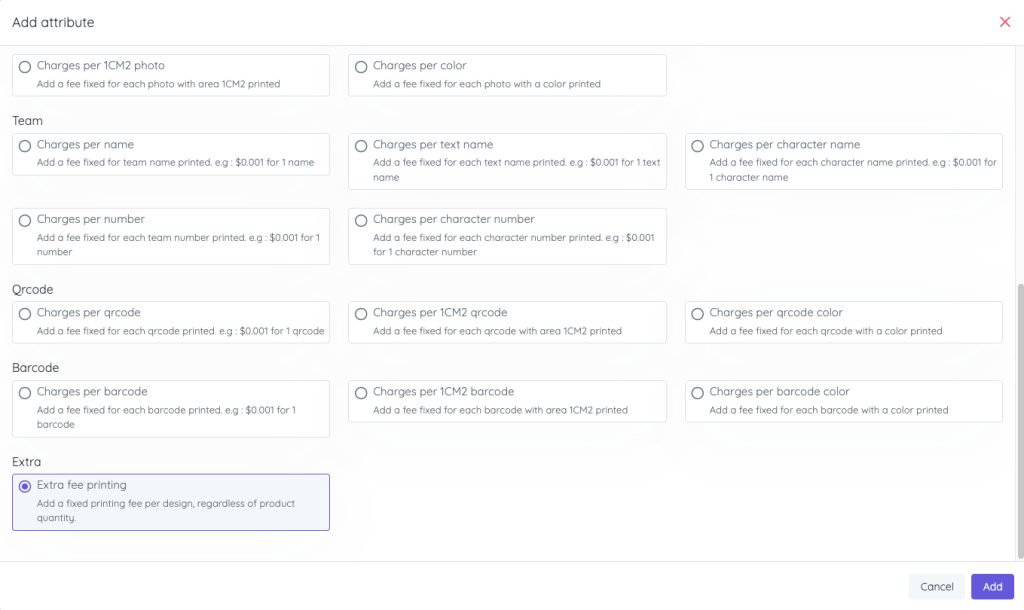
You can Click button Add Print Attribute and select Extra Fee Printing. It working like other print attributes.
Note: If you do not want the printing fee to decrease based on quantity (for example, the fee is $10 for 10 products but drops to $8 for 20 products), you need to set the same price for all quantity levels.
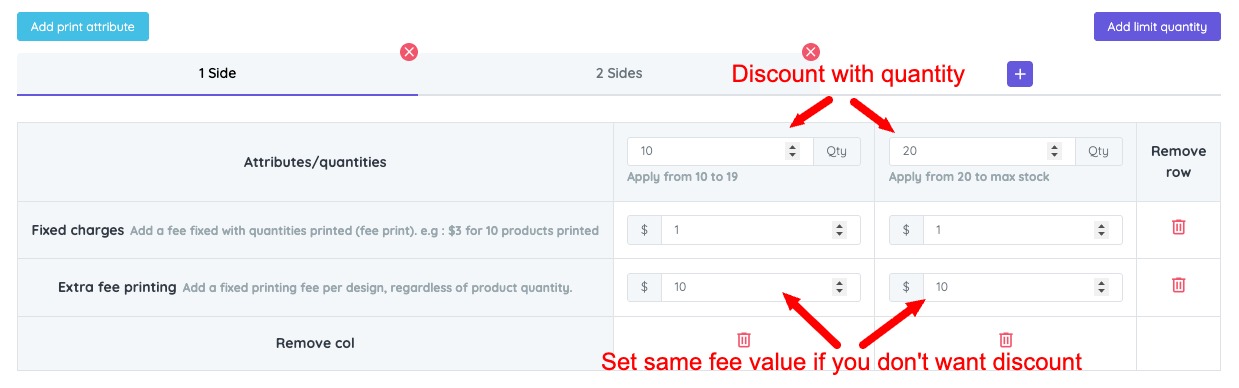
After setup. You need click Save Update.
Result #
Extra printing fee options will appear in the Design Studio and charge fee based on your configuration.
Uninstall / Delete Addon #
If you no longer want to use this addon:
- Uninstall the addon to disable it
- After uninstalling, the Delete button will appear
- Click Delete to permanently remove all addon files
Notes #
- Deleting the addon will permanently remove all related files.
- Make sure the addon is uninstalled before deleting it.


