
Upgrade to the Premium #
The Premium version of Product Designer App unlocks advanced features, enhanced customization options, priority support, and regular updates to help you build a professional product personalization store.
This guide explains how to upgrade from the Free version to the Premium version without losing your existing data or settings.
Good to know
Your existing products, templates, settings, and customer data will remain intact during the upgrade process.
Before You Upgrade #
Before installing the Premium version, we recommend that you:
- Create a full backup of your website and database.
- Ensure your WordPress and WooCommerce installations are up to date.
- Verify that your hosting environment meets the minimum system requirements.
- Purchase a valid Product Designer App Premium license.
Step 1 — Purchase the Premium Version #
Visit the official Product Designer App website and purchase the license that best fits your needs.
Click Buy Basic/Buy Pro version or Login (If you are not logged in)
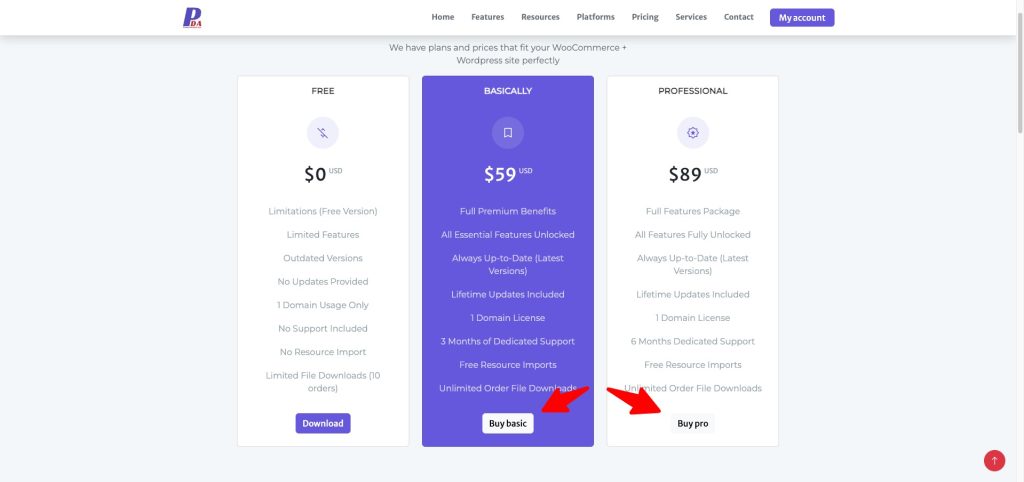
And start payment with paypal.
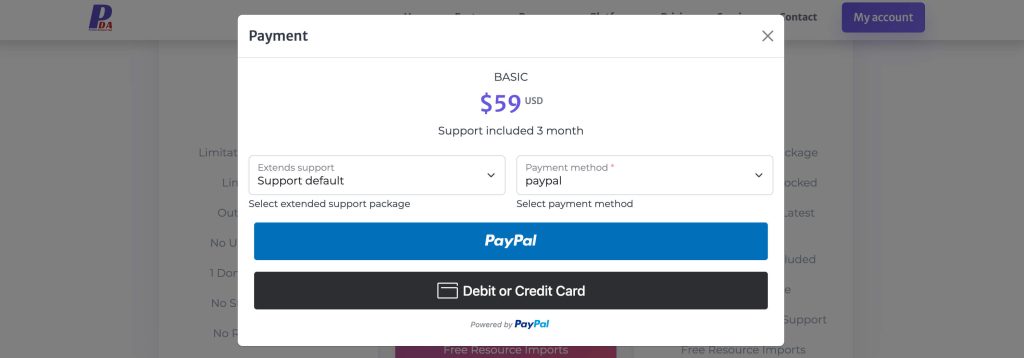
After your purchase, you will receive:
- A download link for the Premium plugin.
- Your License Key.
- Access to future updates and technical support during your license period.
Step 2 — Download the Premium Plugin #
Download the latest Premium plugin package from your customer account.
Select download installation if you want clean install new version – Try step 3.1, 3.2.
Select download Upgrade if you want update only – Try step 3.3.
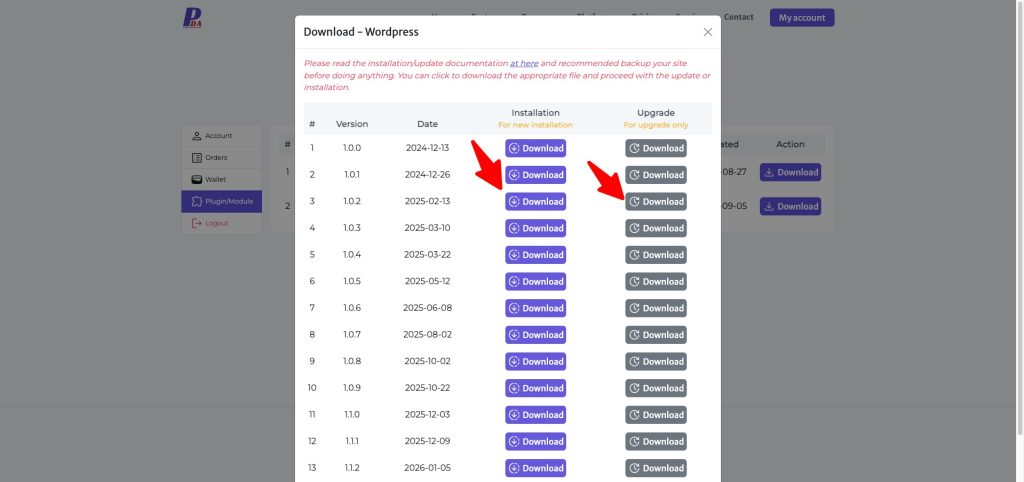
The downloaded file will look similar to:
product-designer-app.zipImportant
Do not extract the ZIP file before uploading it to WordPress.
Step 3 — Update/Install the Premium Plugin #
3.1) Remove the Free Version #
If you want clean install new version. This step is for you.
Because both the Free and Premium editions use the same plugin directory, the Free version must be removed before installing the Premium version.
- Go to WordPress Admin → Plugins.
- Locate Product Designer App.
- Click Deactivate.
- Click Delete.
Note: Skip this step if you only want update. All data demo created by free version will be remove.
3.2) Install the Premium Version #
If you want clean install new version. This step is for you.
- Navigate to Plugins → Add New Plugin.
- Click Upload Plugin.
- Select the Premium ZIP file.
- Click Install Now.
- After installation completes, click Activate Plugin.
The Premium version is now installed.
3.3) Update the Premium Version #
*) Update via WordPress Admin:
Navigate to: Product Designer App → Upgrades → Upload → Select the new plugin ZIP file and waiting update.
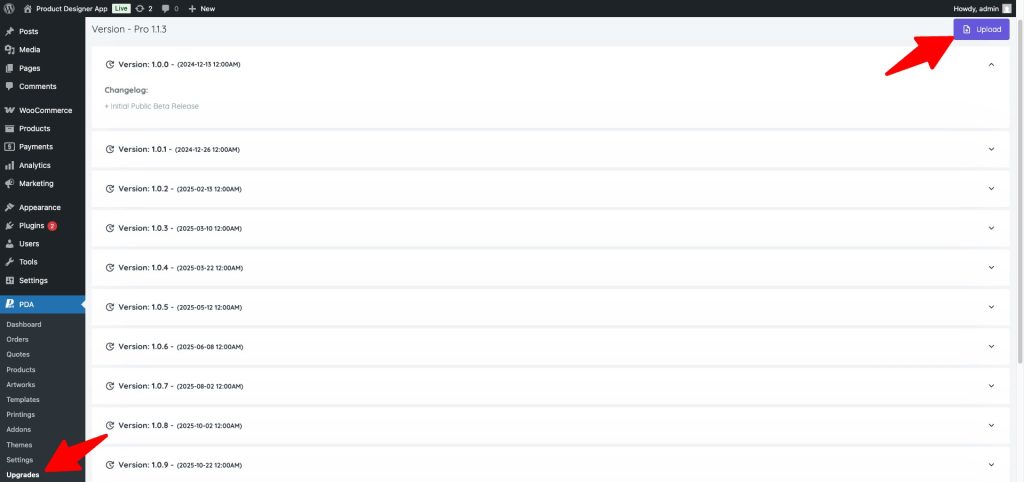
*) Upgrade via FTP (Alternative Method):
If you cannot upgrade from the WordPress backend, you can upgrade manually using FTP.
1. Connect to FTP
- Use FileZilla or any FTP client
- Connect using your FTP credentials
2. Locate Plugin Folder – Navigate to the following directory: wp-content/plugins/product-designer-app
3. Upload New Version Files
- Download the paid version ZIP file
- Unzip it on your computer
- Open the unzipped folder
- Upload all files to:
wp-content/plugins/product-designer-app - Overwrite all existing files when prompted
Once upload is complete, the plugin is upgraded successfully.

Step 4 — Activate Your License #
To enable Premium features and receive future updates:
- Open Product Designer App → Dashboard → License.
- Verify that your License Key is still present.
- Click Verify License.
Once activation is successful, your license status will be displayed as Verified.
Step 5 — Disable WordPress Automatic Updates #
⚠️ Important
If you previously installed the Free version from the WordPress Plugin Directory, you should disable Enable auto-updates for Product Designer App.
If automatic updates remain enabled, WordPress may replace your Premium installation with the Free version during a future plugin update.
To prevent this:
- Go to Plugins.
- Locate Product Designer App.
- If you see Disable auto-updates, click it.
Your Premium installation will now remain intact, and future updates should be performed using the latest Premium package from your Product Designer App account.
Verify the Upgrade #
After upgrading, confirm that:
- The Premium plugin is activated.
- Your license status is Active.
- Existing templates and products are available.
- Product customization works correctly.
- Premium features are accessible.
We also recommend placing a test order to verify that the complete workflow functions as expected.
Future Updates #
To update the Premium version:
- Download the latest Premium package from your customer account.
- Upload the new ZIP file via Product Designer App → Upgrades → Upload.
- Verify that your license remains active.
Note
Do not rely on updates from the WordPress Plugin Directory for the Premium version.
Troubleshooting #
My Premium Version Changed Back to the Free Version #
This usually happens because WordPress Automatic Updates installed the version from the WordPress Plugin Directory.
Solution
- Download the latest Premium package.
- Reinstall it using Upload Plugin.
- Disable Enable auto-updates for Product Designer App.
My Products or Templates Are Missing #
Normally, upgrading does not remove your existing data.
If any data appears to be missing:
- Refresh the page and clear your browser cache.
- Verify that the Premium plugin is activated.
- Check that you installed the correct plugin package.
- Restore your backup if necessary, then contact support.
License Activation Failed #
If your license cannot be activated:
- Verify that the License Key is correct.
- Ensure your server has internet access.
- Check that outbound HTTPS requests are allowed.
- Confirm that your license has not expired.
Need Help? #
If you experience any issues while upgrading, please contact our support team and include the following information:
- Your website URL
- Product Designer App version
- WordPress version
- WooCommerce version
- PHP version
- A description of the issue, along with any relevant screenshots or error messages
Providing these details will help us resolve your issue more quickly.


