
Resources #
The Resources section provides a centralized library of ready-to-use assets for Product Designer App. These resources help you quickly build personalized products without creating everything from scratch.
The resource library includes professionally prepared product bases, artworks, templates, fonts, themes, shapes, filters, and plugin updates. New resources are added regularly to help store owners launch products faster and improve the customer design experience.
What Are Resources? #
Resources are pre-configured assets that can be imported into your Product Designer App installation.
Instead of creating product images, design templates, or artwork libraries manually, you can download ready-made resources and import them directly into your store.
Resources help reduce setup time and provide a solid starting point for new products and design workflows.
Resource Workflow #
A typical resource workflow follows these steps:
Browse Resources
        ↓
Download Resource
        ↓
Import Resource
        ↓
Configure Settings
        ↓
Use in Products
Most resources can be installed within a few minutes and immediately become available inside the Design Studio.
Access Resources #
To access the resource library:
Product Designer App
        ↓
Resources
or visit the online resource store from your Product Designer App account.
Some resources may require account login and license verification before download.
Login Required #
Before downloading resources, you must log in to your Product Designer App account.
The login process verifies:
- Purchase Code
- License Ownership
- Account Access
Once logged in, you can browse and download all available resources associated with your license.
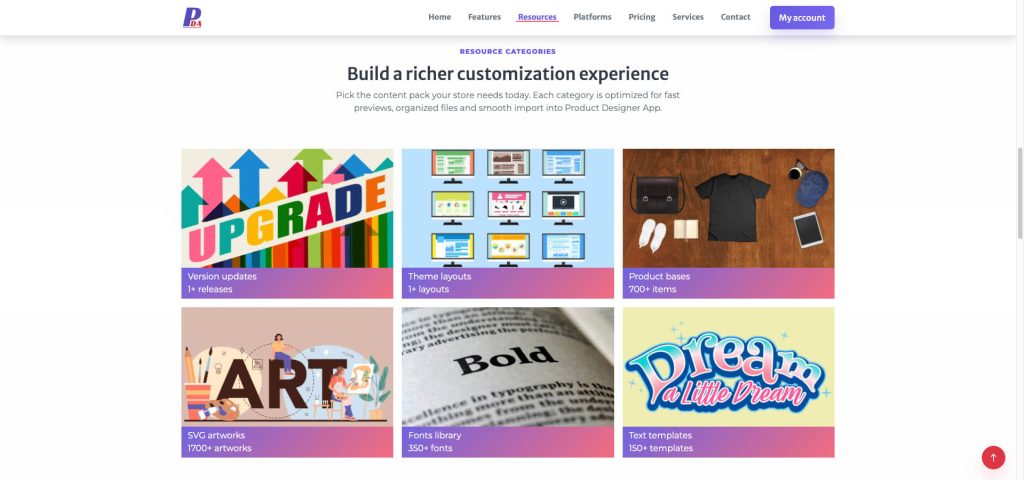
Resource Categories #
The resource library is organized into several categories.
Updates
Themes
Product Bases
Artworks
Fonts
Text Templates
Design Templates
Shapes
Filters
Each category serves a different purpose within the Design Studio and administration system.
Updates #
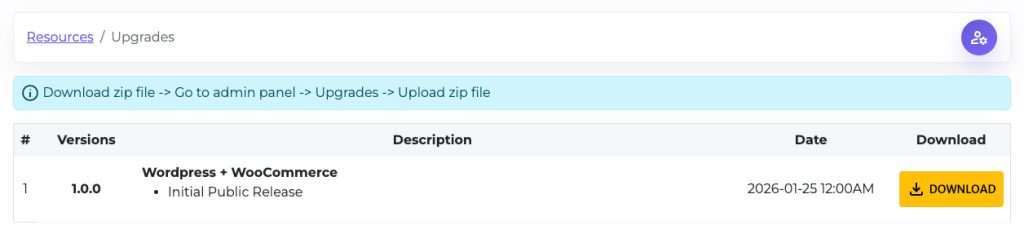
The Updates section contains the latest Product Designer App releases.
Available downloads may include:
- WordPress Versions
- OpenCart Versions
- PrestaShop Versions
- Maintenance Releases
- Feature Updates
Download an Update #
Resources
      ↓
Updates
      ↓
Select Version
      ↓
Download ZIP File
After downloading, upload the package through the Upgrade system to update your installation.
Themes #
Themes allow you to change the appearance and layout of the Design Studio.
Different themes may provide:
- Alternative layouts
- Improved mobile experiences
- Different toolbar styles
- Custom design workflows
Install a Theme #
Download Theme
        ↓
Themes
        ↓
Upload Theme
        ↓
Activate Theme
After activation, the selected theme becomes available in the Design Studio.

Product Bases #
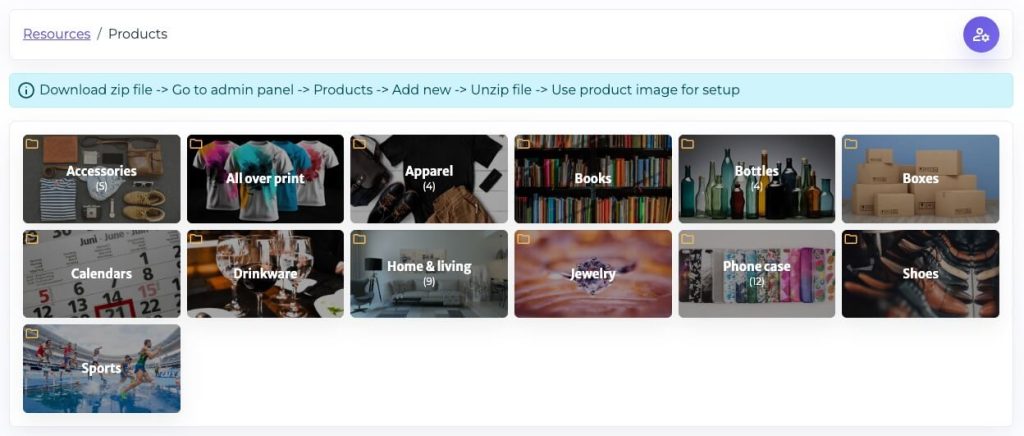
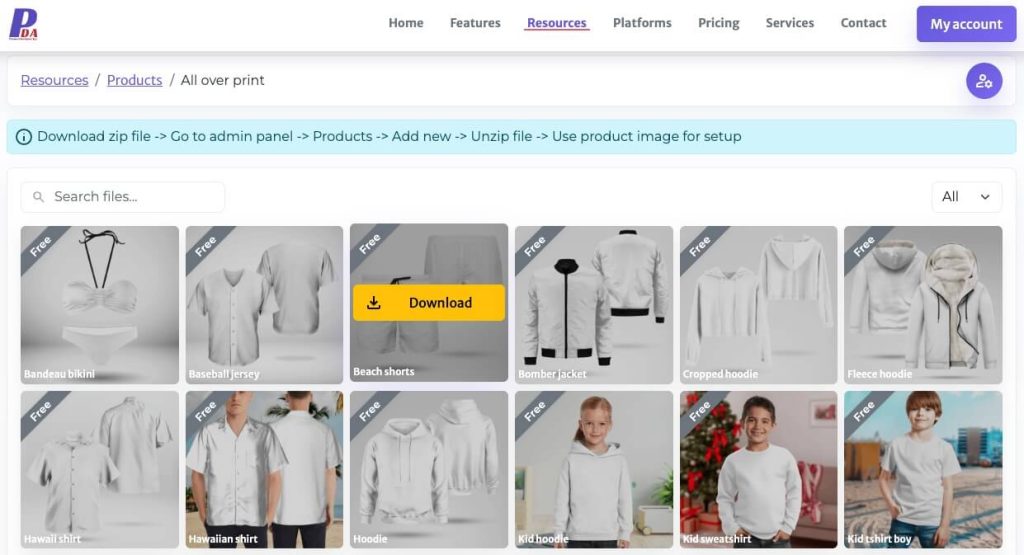
Product Bases provide ready-to-use product image sets for creating customizable products.
Examples include:
- T-Shirts
- Hoodies
- Mugs
- Business Cards
- Banners
- Phone Cases
- Sports Jerseys
Each Product Base typically contains:
- Product Images
- Design Areas
- Multiple Views
- Mockup Assets
Using Product Bases significantly reduces product setup time.
Artworks #
Artworks are graphic assets that customers can add directly to their designs.
Examples include:
- Icons
- Logos
- Sports Graphics
- Decorative Elements
- Seasonal Designs
- Clipart Collections
Most artwork files are provided in SVG format to ensure high-quality printing.


Import Artwork #
Download Artwork
         ↓
Artworks
         ↓
Upload Artwork
         ↓
Save
Once imported, artworks become available in the Design Studio Artwork Library.
Fonts #
Fonts allow customers to create personalized text designs.
The resource library contains font collections suitable for:
- Apparel
- Promotional Products
- Business Printing
- Sports Designs
- Event Products

Import Fonts #
Download Font
        ↓
Settings
        ↓
Fonts
        ↓
Upload Font
After uploading, fonts become available within the Text Tool.
Text Templates #
Text Templates provide pre-designed text layouts.
Examples include:
- Names
- Slogans
- Quotes
- Sports Numbers
- Monograms
Text Templates help customers create professional designs quickly without manually adjusting typography.


Design Templates #
Design Templates are complete pre-built designs ready for use.
A template may include:
- Text
- Artwork
- Photos
- Effects
- Layout Configuration
Design Templates are ideal for:
- Print-on-demand stores
- Sports products
- Corporate merchandise
- Promotional campaigns


Import a Design Template #
Download Template
         ↓
Templates
         ↓
Create Template
         ↓
Import
Once imported, customers can start from the template and customize it.
Shapes #
Shapes are used primarily for photo masking.
Customers can place photos inside predefined shapes such as:
- Circles
- Hearts
- Stars
- Frames
- Custom Cutouts
Shapes help create unique photo layouts without requiring advanced design skills.


Filters #
Filters provide visual effects for photos.
Examples include:
- Black & White
- Vintage
- Brightness Effects
- Contrast Effects
- Artistic Styles
Filters help customers enhance uploaded images directly within the Design Studio.


Download Resources #
To download any resource:
- Open the resource category.
- Browse available assets.
- Select the desired item.
- Click Download.
- Save the ZIP file.
Example:
Resources
      ↓
Artworks
      ↓
Select Category
      ↓
Download
Most resources are delivered as ZIP packages for easy import.
Import Resources #
After downloading, resources must be imported into Product Designer App.
The import location depends on the resource type.
| Resource Type | Import Location |
|---|---|
| Product Base | Product Bases |
| Artwork | Artworks |
| Font | Settings → Fonts |
| Template | Templates |
| Theme | Themes |
| Shape | Settings → Shapes |
| Filter | Settings → Filters |
After importing, the resource becomes available immediately or after refreshing the cache.
Resource Updates #
The resource library is updated regularly with new content.
New additions may include:
- Product Bases
- Artwork Collections
- Design Templates
- Fonts
- Themes
- Feature Resources
Checking the resource library periodically helps keep your store fresh and up to date.
Important Notes #
Before using resources, keep the following recommendations in mind:
✓ Verify resource compatibility with your platform version.
✓ Download resources from official Product Designer App sources only.
✓ Back up your site before importing large resource collections.
✓ Review imported templates before publishing them.
✓ Organize resources into categories for easier management.
✓ Test imported assets before using them in production.
Common Use Cases #
New Store Setup #
Download:
- Product Bases
- Fonts
- Artworks
- Templates
Launch products faster without creating resources manually.
Sports Products #
Download:
- Team Templates
- Jersey Product Bases
- Sports Fonts
- Number Libraries
Build complete sports customization products.
Print-on-Demand Stores #
Download:
- Product Mockups
- Design Templates
- Artwork Packs
Accelerate product creation and customer onboarding.
Marketing Campaigns #
Download:
- Seasonal Artwork
- Promotional Templates
- Event Graphics
Launch campaigns quickly with ready-made assets.
Best Practices #
For the best experience:
- Start with Product Bases and Templates.
- Use SVG artwork whenever possible.
- Organize resources by category.
- Remove unused assets regularly.
- Test imported resources before publishing.
- Keep resources updated.
- Download updates from official sources only.
- Back up custom resources before upgrading.
The Resources library is one of the fastest ways to expand the capabilities of Product Designer App. By leveraging ready-made assets, templates, artwork, fonts, and product bases, you can reduce setup time, improve design quality, and create a better customization experience for your customers.


