
Update Product Designer App #
Keeping Product Designer App (PDA) up to date ensures you receive the latest features, performance improvements, bug fixes, security updates, and compatibility with the latest versions of WordPress and WooCommerce.
This guide explains the recommended way to update the plugin and important precautions to avoid accidentally replacing the Premium version with the Free version.
Before You Update #
Before updating, we strongly recommend that you:
- Create a full backup of your website and database.
- Verify that your server meets the latest system requirements.
- Review the release notes for any breaking changes or new requirements.
- Test updates on a staging website before updating your production site.
Important Notice #
⚠️ Disable WordPress Automatic Updates
If you are using the Premium version of Product Designer App, do not enable WordPress automatic updates (“Enable auto-updates”) for the plugin.
Since the Free version is available in the WordPress Plugin Directory, enabling automatic updates may cause WordPress to replace your Premium version with the Free version, resulting in the loss of Premium features.
We recommend updating the Premium version manually using the latest package downloaded from your Product Designer App account.
How to Disable Automatic Updates #
- Go to WordPress Admin → Plugins.
- Locate Product Designer App.
- If you see Disable auto-updates, your automatic updates are currently enabled.
- Click Disable auto-updates.
Your plugin will now remain on the installed Premium version until you update it manually.
Manual Update (Recommended) #
Manual updates are the safest way to update the Premium version.
Step 1 — Download the Latest Version #
Download the latest Product Designer App ZIP package from your customer account (Download package upgrade). Do not extract the ZIP file.
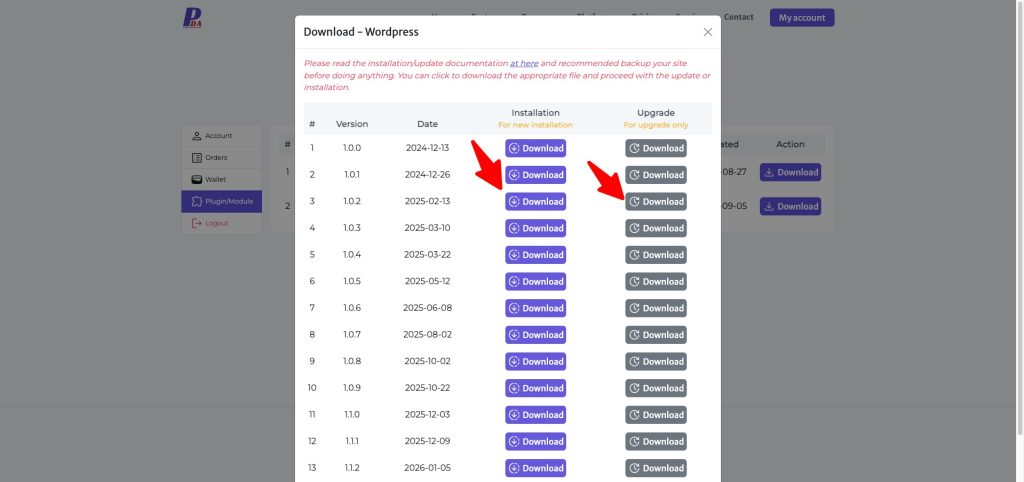
Step 2 — Upload the New Version #
Navigate to: Product Designer App → Upgrades → Upload → Select the new plugin ZIP file and waiting update.
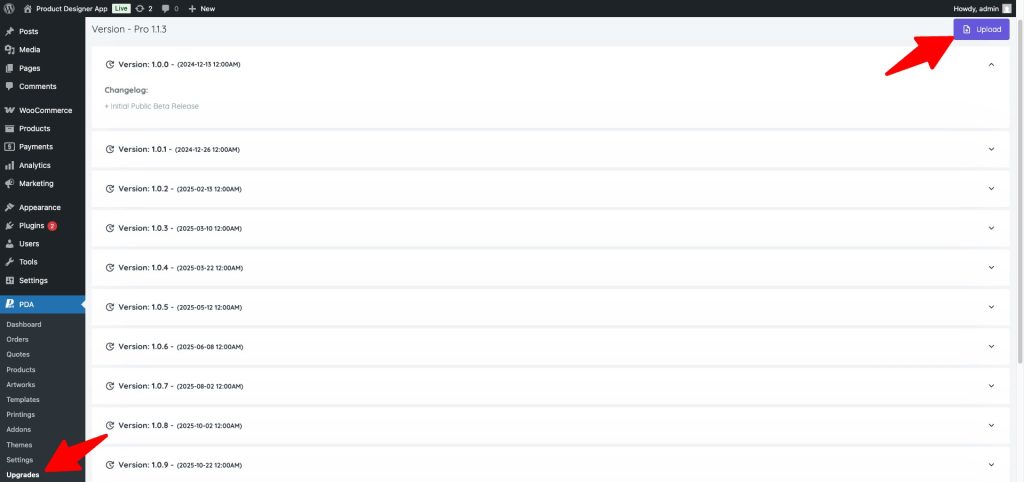
Step 3 — Complete the Update #
After the upload finishes:
- Open Product Designer App.
- Confirm that the plugin version has been updated.
Your existing settings, templates, products, and assets will remain unchanged.
Verify the Update #
After updating, check the following:
- Plugin version matches the latest release.
- License status is Active.
- Product Designer App loads normally.
- Existing templates are available.
- Product customization works correctly.
- Export functions (SVG, PDF, PNG) work as expected.
We also recommend placing a test order to verify the complete workflow.
Recommended Post-Update Checks #
After every update, test:
- Product Designer editor
- WooCommerce product pages
- Product options
- Dynamic pricing
- File exports
- Order previews
- Customer design saving
- Mobile compatibility
This helps identify any issues before customers encounter them.
Troubleshooting #
The Premium Version Changed to the Free Version #
This usually happens because WordPress Automatic Updates downloaded the version from the WordPress Plugin Directory.
Solution
- Download the latest Premium version from your Product Designer App account.
- Upload it manually using Product Designer App → Upgrades → Upload.
- Replace the existing installation.
- Disable Enable auto-updates to prevent it from happening again.
Plugin Disappears After Updating #
If Product Designer App no longer appears in the admin menu:
- Confirm that the plugin is activated.
- Clear any server or browser cache.
- Check for PHP errors in the debug log.
- Reinstall the latest Premium package if necessary.
License Becomes Inactive #
If your license is no longer active after updating:
- Open Product Designer App → Dashboard → License.
- Verify that your License Key is still present.
- Click Verify License if required.
Update Failed #
Possible causes include:
- Insufficient file permissions
- Low PHP memory limit
- Upload size restrictions
- Interrupted network connection
- Corrupted ZIP package
Verify your server configuration and try the update again.
Best Practices #
For the most reliable update experience:
- Keep automatic updates disabled for the Premium version.
- Always use the latest installation package from your Product Designer App account.
- Back up your website before every update.
- Test updates on a staging environment whenever possible.
- Review the release notes before installing a new version.
Need Help? #
If you encounter any problems during the update process, please contact our support team and include:
- Product Designer App version
- WordPress version
- WooCommerce version
- PHP version
- Your website URL
- Any error messages or screenshots
This information will help us diagnose and resolve the issue more quickly.


